


Writing clinical notes is one of the most time-consuming parts of the dental working day. Even with structured templates and voice dictation, there are moments where you want a little more: a clearer summary, a draft referral letter, or help thinking through a patient's periodontal status. That's exactly what the AI Editor is designed for.
Built directly into the Kiroku screen, the AI Editor puts an intelligent assistant right beside your work, whether you're in your dental notes or generating a document. No switching tabs, no copy-pasting into external tools, no losing your train of thought.
What is the AI Editor?
The AI Editor lets you work with AI directly alongside your notes and documents, helping you refine or enhance them without switching tabs or losing focus.
It's context-aware, meaning it understands what's in your current Note or Doc. Where available, it can also draw on the appointment’s AI voice transcript used to write your dental note.
In Notes, you can open it at any time using the magic wand button on the right-hand panel of your notes screen.
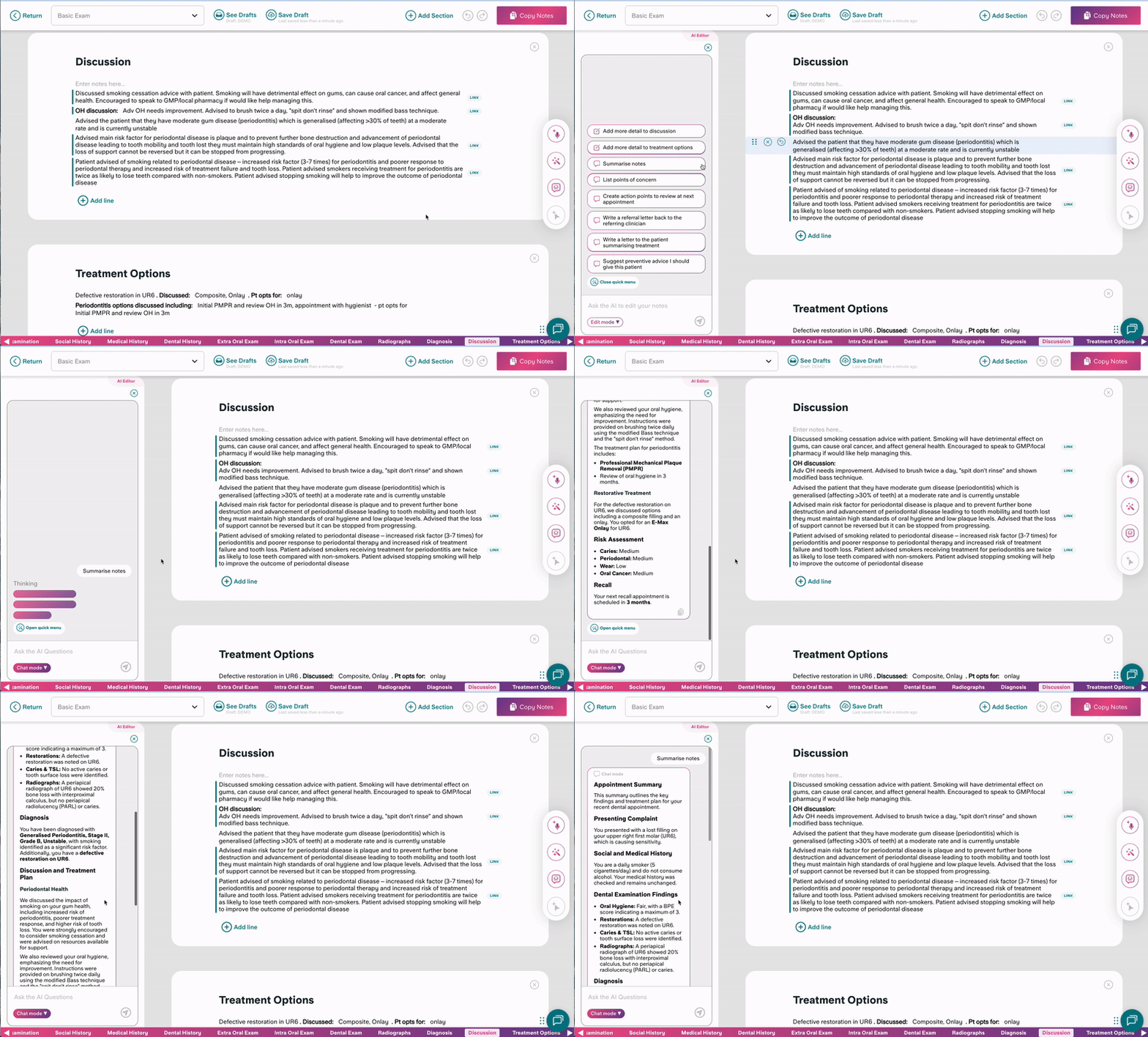
It will also open automatically once all buttons in your note template have been clicked, or when you press 'Write my note' in Freestyle.
In Docs, it’s always open. It shows you any missing placeholders that need to be filled, such as the patient's name or address.
How does it work in Notes?
The AI Editor has two distinct modes, and understanding the difference is key to getting the most from it.
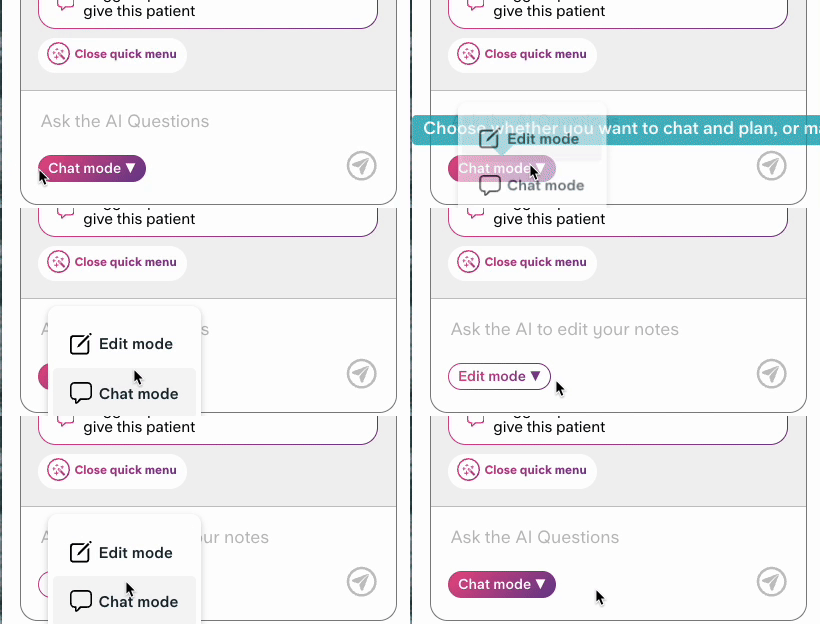
Chat mode
In Chat mode, the AI won't change your note directly, rather, it provides ideas or drafts in the chat thread. Think of it as a conversation: you ask, it responds, and you decide what to do with the output.
This is well suited to tasks like summarising your dental notes, drafting a letter to a patient or specialist, listing action points, or finding something mentioned in the appointment transcript.
Edit mode
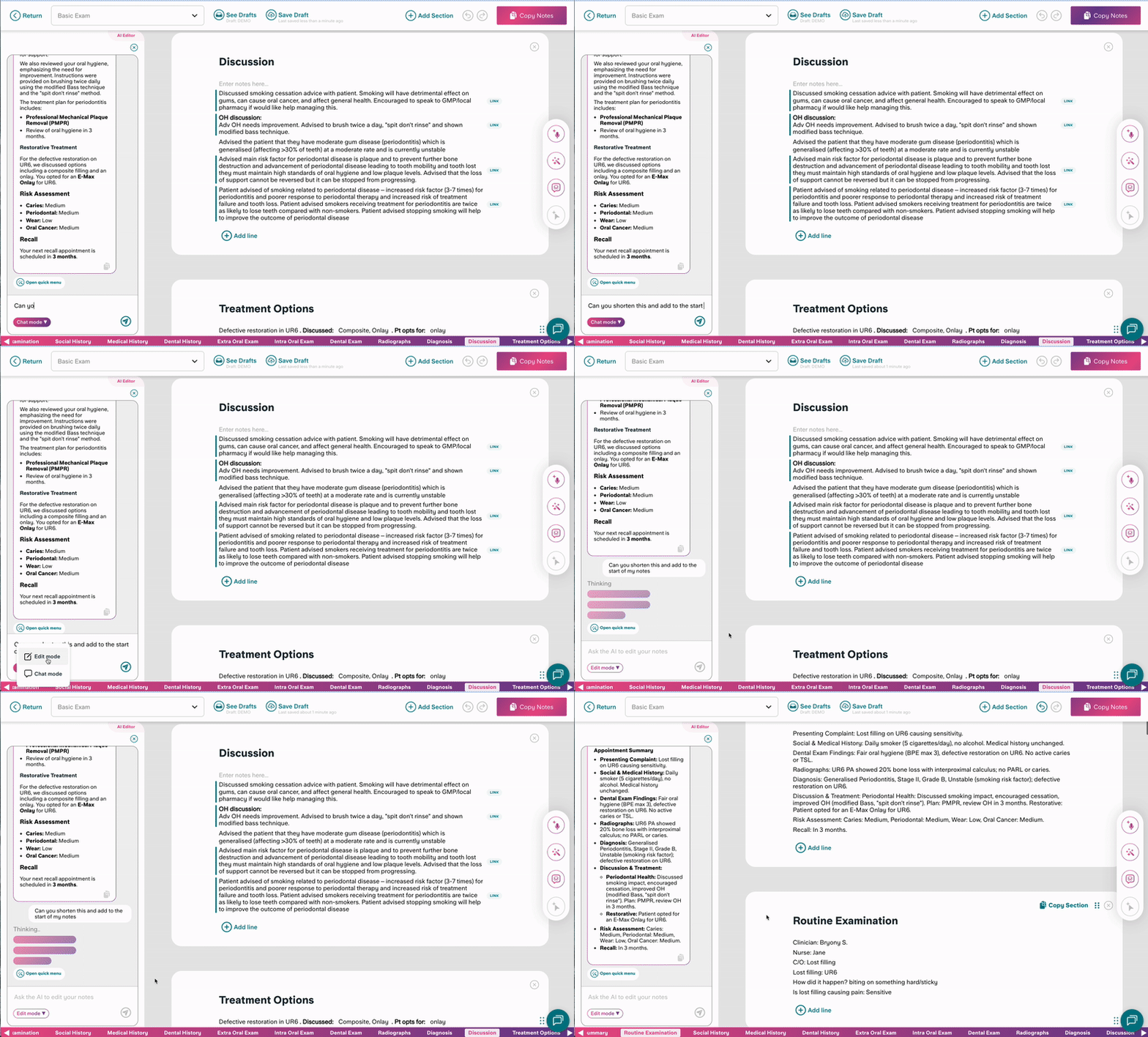
In Edit mode, the AI edits your notes directly. This is useful when you want to add detail from the transcript, refine a specific section, or incorporate a summary or action points without doing it manually.
Edit mode can only be used once all buttons in your note template have been clicked. If there’s un-clicked information, you can use the “Skip remaining lines” option at the end of each section to remove lines that include unnecessary information or un-clicked buttons.
Quick tasks and free typing
When you open the AI Editor, you'll see a list of quick tasks. These are handy shortcuts for common actions like "Summarise notes" or "Create action points to review at the next appointment."
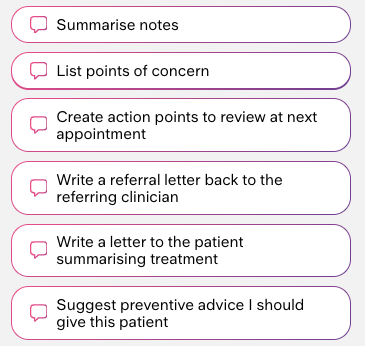
These are a good starting point, but you're not limited to them. You can type any request freely into the chat bar, whatever fits your workflow at that moment.
How does it work in Docs?
The AI Editor is also available when you're working in Docs, and it behaves slightly differently here. In Docs, the editor works in Edit mode only. The AI makes changes directly to your document rather than responding in a chat thread.
This is particularly useful for filling in placeholder information. When you set up a Doc template, you can instruct it to include specific details, for example, a patient's risk factors, a treatment plan summary, or the outcome of a periodontal assessment. If that information isn't already in the linked notes, the AI Editor can help you populate those placeholders quickly, rather than filling them in manually.
You can also use the AI Editor in Docs to refine or restructure the document itself, adjusting the wording of a letter, adding a section, or making the content clearer before sending.
If you have an existing letter you want to create, or need help starting a Doc from scratch, you can also use the AI Editor in Docs to do that.
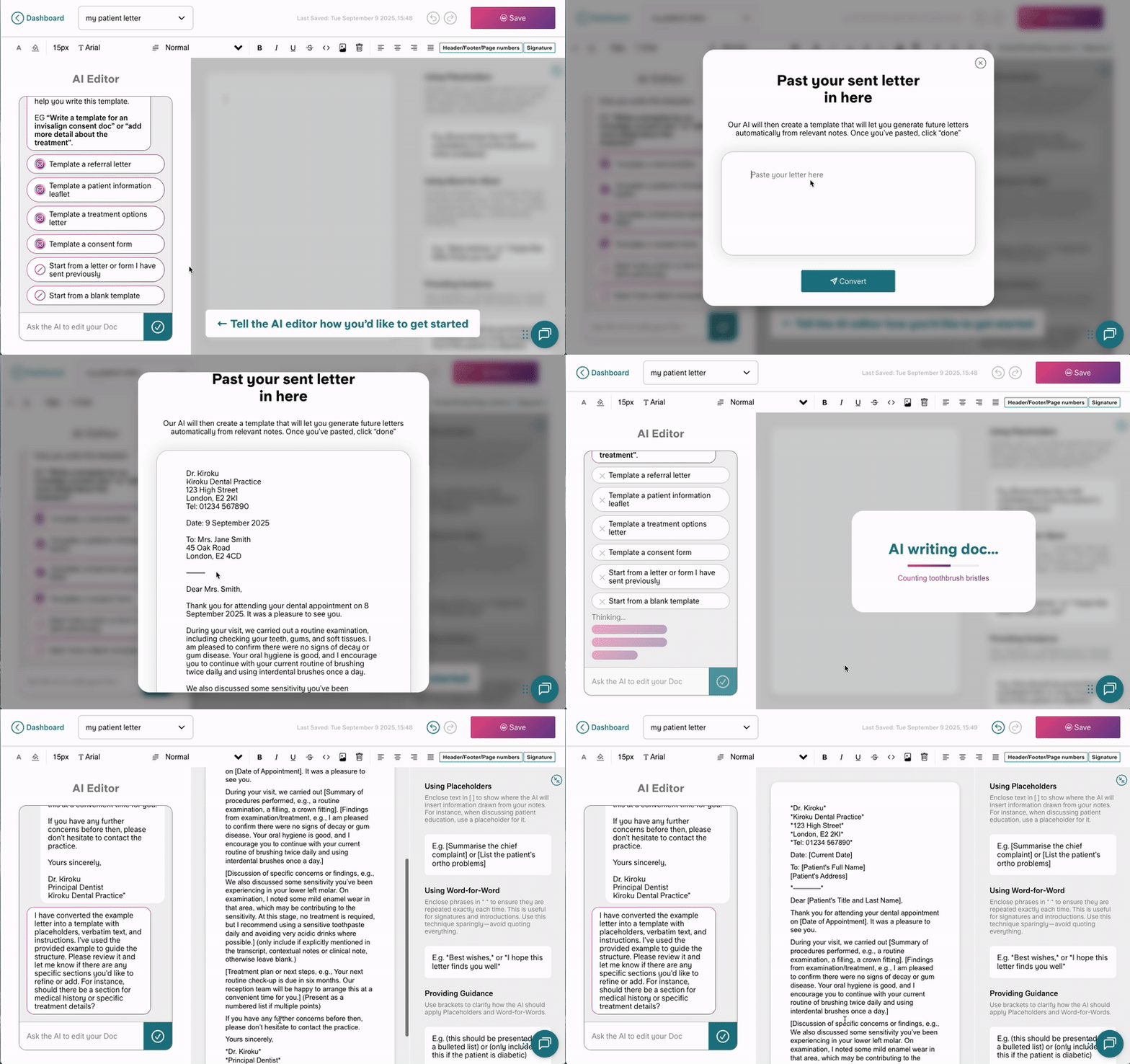
Example AI Editor use cases
The AI Editor is flexible enough to be useful across a wide range of clinical situations. Here are some of the most common ways clinicians are using it.
Summarising complex appointments
If an appointment covered several issues, a failing restoration, early-stage periodontal concerns, and a pending referral, it can be hard to capture everything concisely. The AI Editor can produce a clean summary of your notes in seconds, which you can review, adjust, and add directly to the record.
Drafting patient-facing communication
Rather than writing a practice management system message or patient letter from scratch, you can ask the AI Editor to draft one based on what's already in your notes. For example: "Write a short message for the patient management system explaining today's findings and next steps." The draft appears in the chat thread for you to review and copy.
Creating action points for the next appointment
At the end of a longer appointment, it's easy to forget to note what needs to be reviewed or followed up. The quick prompt "List all action points for the next appointment" gives you a ready-made checklist to add to the record.
Referral letter drafts
Rather than writing a referral to a periodontist or specialist from a blank page, you can ask the AI Editor to draft one using the clinical detail already in your note.
You have less control over the output of this letter compared to using our Docs product, but it’s useful for a quick, text-based draft.
Finding specific information in a transcript
If you recorded the appointment using AI Voice, the AI Editor can search across the transcript for you. Useful if you want to confirm exactly what was discussed about a treatment option, a patient's concerns, or a clinical finding you want to add to the dental note.
If you find that the level of detail is not quite right in your notes, you can also ask the AI Editor to add specific details into your notes. We’ve created two quick prompts to help with this: “Add more detail to discussion” and “Add more detail to the treatment options”.
Updating tooth notation
AI transcription tools can sometimes struggle with registering and transcribing numbers correctly. If you find that the wrong tooth has been noted in your appointment, you can ask the AI Editor to update the tooth notation throughout your notes.
Remember that AI can make mistakes, and as the clinician you are responsible for reviewing its output before saving notes to the patient’s record.
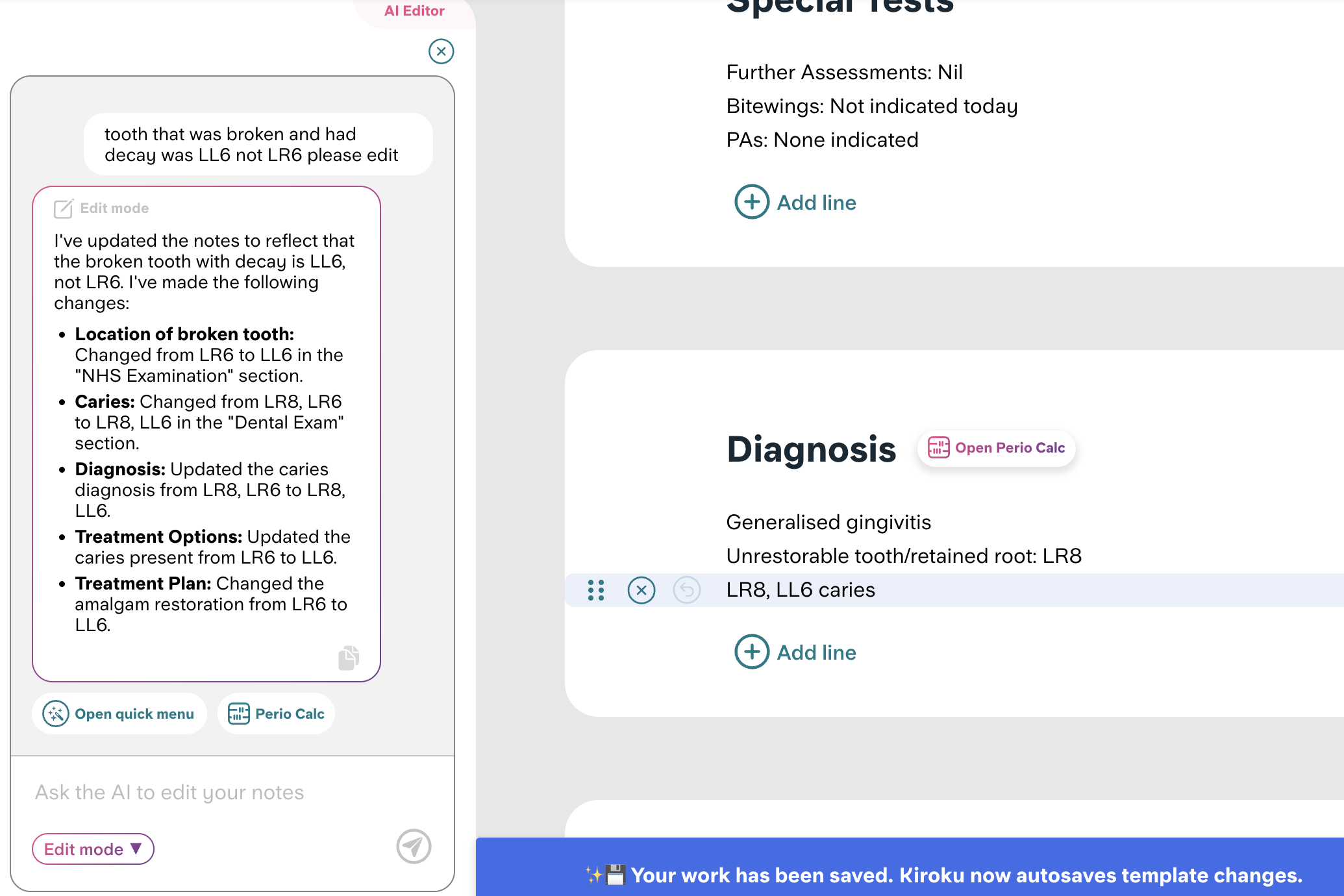
Completing and refining referral letters in Docs
When generating a referral letter via Docs, your template may include placeholders for information not captured in the note: a specific clinical measurement, a summary of the patient's medical history, or detail about a previous treatment. The AI Editor will remind you to populate any missing information.
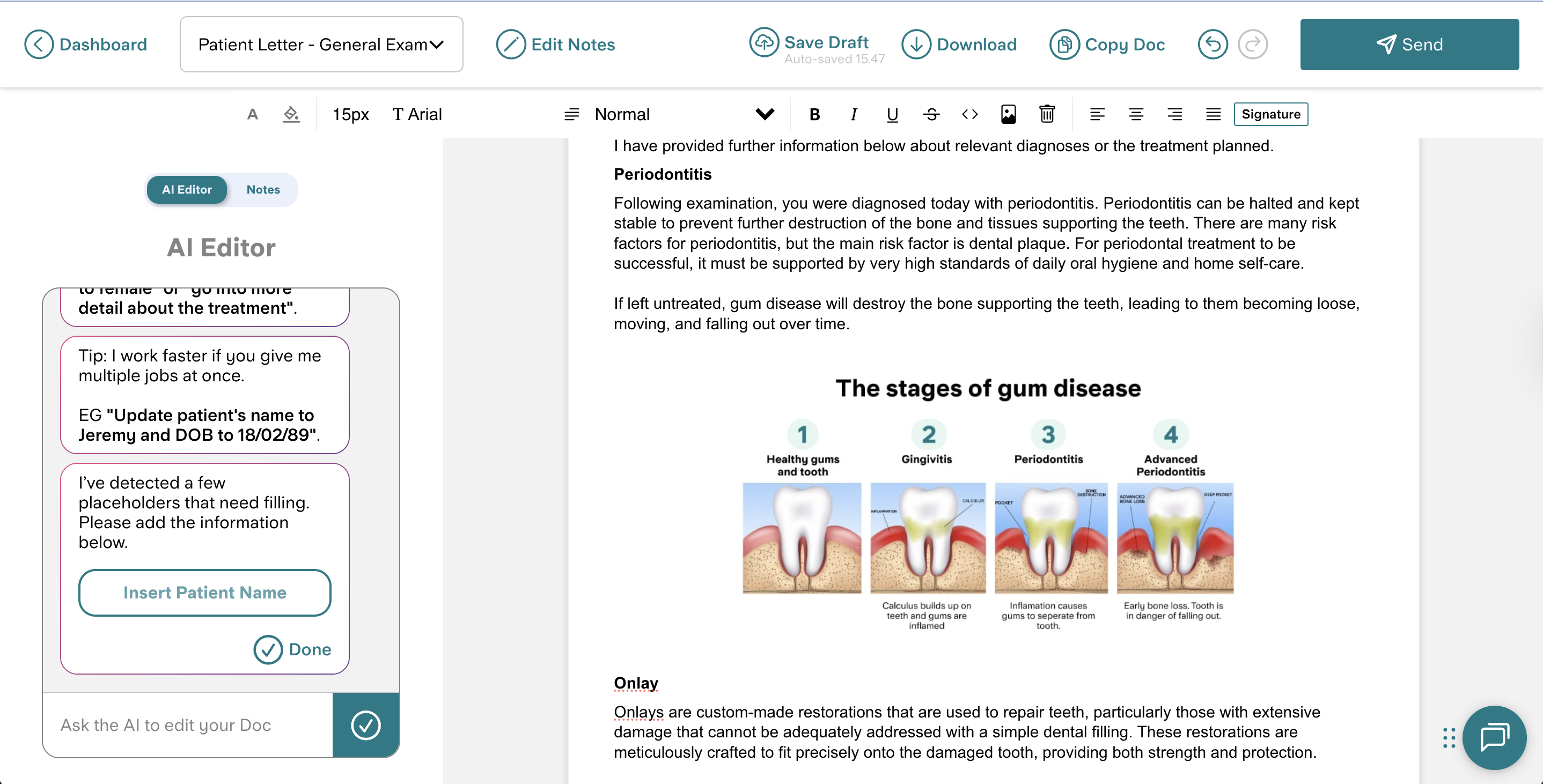
Once the letter is drafted, you can also ask the AI to refine the wording or restructure a section before sending.
What the AI Editor can’t do
The AI Editor has been built to help answer questions or easily make edits at the point of use.
That means:
- The AI Editor has no memory outside of the specific session.
- The AI Editor does not retain chat history if you navigate away from the Notes or Docs.
- The AI Editor cannot be trained or given instructions to follow in the future.
Spotlight: the Perio Calculator
One of the most clinically useful features within the AI Editor is the built-in Periodontal Calculator. This is particularly relevant given the increasing focus on periodontal diagnosis and medicolegal risk in dentistry.
What does it do?
The Periodontal Calculator helps you quickly assess a patient's periodontal health using standard clinical criteria. By entering the relevant details, the calculator automatically determines the patient's overall periodontal diagnosis.
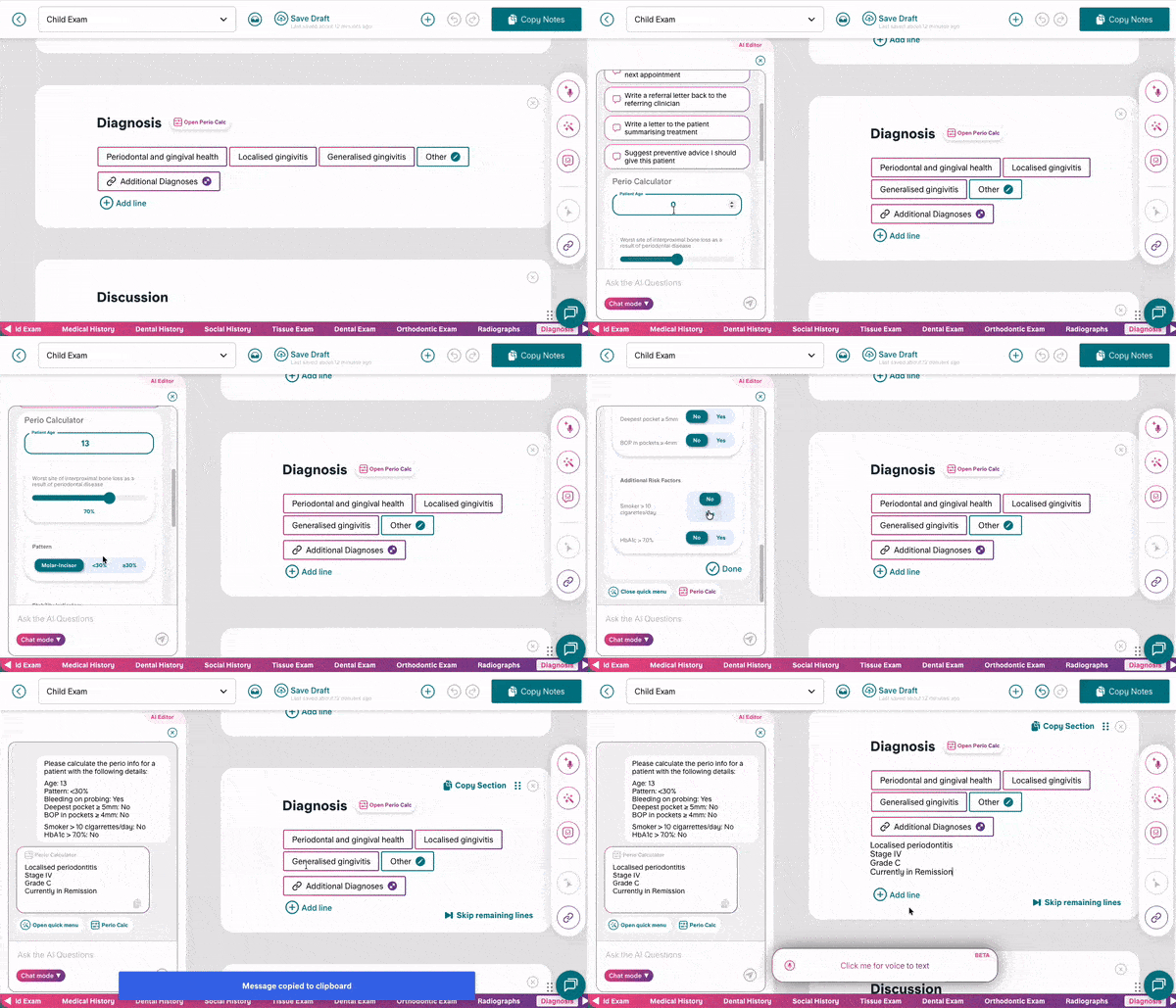
This tool is designed to make periodontal assessments faster, more consistent, and easier to document within your notes. It helps you ensure every patient's periodontal status is accurately recorded and communicated.
Where do I find it?
The Periodontal Calculator is found below the quick tasks in the AI Editor. It can be opened by selecting the magic wand button on the right side of your notes screen.
A shortcut is also available from any Notes section that includes the words “Diagnosis” or “Risk Assessment”.
How do I use it?
Complete the fields of the calculator, then select 'Done'. You'll then be shown the calculated:
- Extent: localised or generalised
- Stage: I, II, III, IV
- Grade: A, B, C
- Stability: Unstable, In Remission, Stable
- Any risk factors
You can then copy this and paste it into your Kiroku notes or practice software. We have an article in our Help Centre with more details on using the Periodontal Calculator.
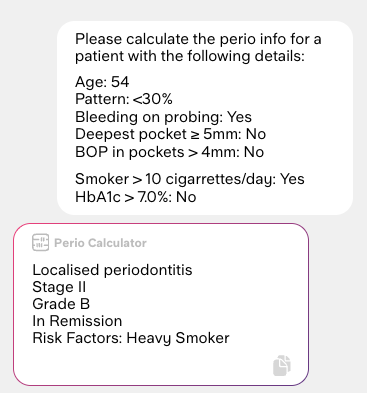
This is particularly valuable for clinicians who want to ensure their periodontal diagnoses are consistent with the 2017 British Society of Periodontology Classification, removing the mental load of calculating staging and grading manually, and producing a clear, documentable output every time.
Why does this matter?
Periodontal disease remains one of the most common sources of medicolegal complaints in dentistry. Often this is not because of poor clinical care, but because of gaps in diagnosis, documentation, or communication.
A structured, consistently applied assessment, and a clear record of it, is one of the most effective ways to manage that risk.
Getting started with the AI Editor
The AI Editor is available to all Kiroku users from within the Notes screen or when creating a Doc
If you're not yet using Kiroku, you can start a free trial and explore all of these features for yourself.


